#OfficeNetwork
How much technology do you really need in the office? I am not talking about the stuff you see like your desktop computer, the tablet or your phone. What I am talking about are web servers, mail servers, routers and hubs, and things you never see unless you are the IT guy.
Recently I spent some time with two different clients this month and was amazed at how much in house technology they had. Both of these businesses have less than 15 employees full time in the office, and 10 employees out on the road. Here are their setups starting from the wall to the desk:
Business 1 10 Users, 6 client interactions per day:
ATT UVerse Modem 15 Static IP Addresses
Juniper Router
-Microsoft Small Business Server - Required for software used in house
-Microsoft Exchange Server - Used for basic email functions
-Digital Tape Backup Drive - Used to Back Up Bothe Servers
10 Desktop PC's with 18" LCD Screens
All users have iPhones
Monthly IT average $3000
Business 2, 12 Users, 45 Client Interactions per day:
Time Warner Cable Modem - 50 Static IP addresses
Cisco Router
2 x Apple Airport
-Microsoft Exchange Server - Basic Email Functions
-Microsoft Small Business Server - Financial and Data Storage
-Specialty Server for software package
8 Desktop PC's with 20" screens
2 Desktop Macs
2 MacBooks
12 iPhones
Monthly IT average $2100
In both cases, I couldn't see any reason to have an in house server for email or basic functionality. A network drive, sometimes called "Network Addressable Storage" or NAS drives, would have worked just fine. The difference? About $3000 up front plus $500 a month in support. Additionally neither needs the MS exchange server now that they have gone to the iPhone as the mobile platform. Yes Exchange does a lot more, but they aren't using it.
The last monthly cost is the static IP addresses. Business one needs it for a subscription service they have to purchase for each computer. I am suspicious though that the vendor doesn't have an option for dynamic IP addresses. The second business was hosting their website data on their server but not the website. It was a crazy system to support. Additionally of the 50 static IP addresses only 5 were in use.
How would I set up businesses that size? In fact just about any business can use this model if you have less than 20 desktop systems. In fact now I see iPads with keyboards and proprietary apps and that whole setup is less than what I listed above.
Here is exactly what my two offices look like:
Verizon FiOS Router - WiFi off, set to Modem only Mode.
Apple Airport Extreme Router(s)
Netgear ReadyNAS Network Drive
Virtual Web Hosting with Email Service, 1and1 and GoDaddy are two good ones we support in our office.
Desktop PC or MAC as required.
This is exactly our setup, I don't use the Verizon FiOS Router for simplicity reasons, and in an all MAC business, you could use the Apple Time Capsule instead of the Netgear Ready NAS. All of our email is stored on the servers at 1and1, as is our website. We back them up to a DVD each month. The NAS Drive is backed up weekly since that is where our customer records and financials are stored.
Western Digital even calls one option "mycloud", meaning you own it. While I like virtual email and web hosting to save money, you should own your data in a physical sense. That is why we use the NAS drive. Our setup has all of the capability needed for both businesses and would have cost over $10,000 less.
Do you want to see your IT guy more often or do you want $10,000 or more in your bank account?
Showing posts with label Business computers. Show all posts
Showing posts with label Business computers. Show all posts
Monday, November 4, 2013


Sunday, November 25, 2012
Living With Windows 8, Is It The New Coke of The PC World?
Our office computers are now pushing four. In business computer land that is an unheard of age. Weekly crashes and blue screens have been the norm. Clearly the hardware can’t keep up.
After a week of looking around, we ended up in the Microsoft store and started to really like the idea of Windows 8 and the instant information on the home screen using “tiles”. Maybe it should be called Windows Tiles Instead of Windows 8.
Eventually, we were convinced to buy a Windows 7 PC and upgrade to Windows 8 Pro with Media Center.
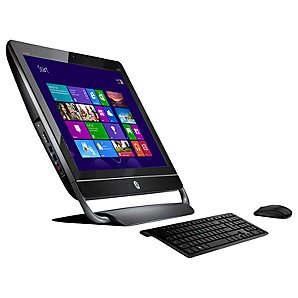
The initial installation to Windows 8 was the easiest upgrade I had ever done. Literally just insert DVD , click three agree boxes and off it went. The PC was a brand new HP AIO with a 23” screen. The plan was to get a serial adapter and then use a second 22” HP screen we already had.
Not one single glitch or hardware error during the upgrade. Everything appeared to work perfectly.
Setting up email with Windows Live Mail was pretty straight forward. It did ask if our server was POP or IMAP and then when we chose POP a window appeared that says “Windows Live Mail Does Not Support POP, Please contact your provider for IMAP”. Why not just say that on the previous screen?
After setting up the initial screen “Tiles” on Windows 8, we really liked the ability to see a snapshot of your world on one screen. This is the perfect solution for a kitchen tablet, or shared family PC that isn’t used for work. Much better than the small screen iPad and since the tiles updated, you always have the latest information, at least that is the idea. With HP AIO computers starting at just $799 for the touchscreen models, it makes sense to have a 20” tablet in the kitchen for controlling lights and easily reading recipes.
This is also the failing of Windows 8. Windows 8 might just become the catalyst of change in our office, and not one that Steve Ballmer is going to be happy with.
Knowing there were major changes to the thought process and operation of Windows 8, I let a lot of things go in my two initial articles about Windows 8. I assumed the problems I was having were simple user errors and I would learn how to do it right later.
Wrong.
After setting up Mail, the next thing I wanted to set up was our server access. It took a while but I found a help file article to map network drives. The “Desktop” tile quickly became my tile of choice. I couldn’t “Map” any of our music or photo folders on the server to the “libraries” on the PC as I could in Windows 7. While I was going back and forth between the “desktop” and the “home” screens I noticed the weather wasn’t doing what I expected.
With our old PC’s we had several “gadgets” on the right side displaying time and weather in several cities. Calling Tony at Renew Services in Indianapolis during a major snowstorm would just be a waste of time. I set the tile up to monitor five different cities. Instead it only showed New York, New York weather. New York wasn’t one of my five choice.
I got sidetracked here and tried the weather channel ap and the weather bug ap, and neither of them would display more than one city. I expected it to rotate through the cities so in 45 seconds or so I would get to see all of the information. That didn’t happen.
Since I had a pretty big screen I tried to load several tiles. Windows 8 wouldn’t let me load the same tile twice. I could only see the weather in one city without clicking the tile. WeatherBug said they were working on a fix.
Back to drive mapping. In Windows 7 it was a two step process of mapping a drive and then adding the folders in the drive to the library. In iTunes it was worse. Again I assumed Apple wants me to buy their toys.
In Windows 8 it can’t be done easily. At least no way that I found. Next of course was mapping the photos drive so we would have easy access to them for creating customer websites. This is where the big problems started. I still haven’t found media center, even though we bought “Windows 8 Pro with Media Center”. What we found were tiled versions of pieces of media center, that wouldn’t allow mapping of our server for media access. I tried the XBox music interface, and no luck there either.
Finally it was time to simply work. We tried to Upload the latest non-cloud based versions of Office and Expression Web. We also tried to set up mail. POP is no longer supported.
Using iMap we were able to get Windows Live Mail to work. We couldn’t get mail to tile though, only “fence post”. I say fence post because it takes a full vertical slice of your screen. Instead of a 3x3 tile or “window” that can hide behind a word document, mail is displayed as a 3” wide vertical stripe on the screen.
Even in “desktop” mode, the fence post was all I could figure out. We couldn’t open a document, two browsers and an email window or tile on one desktop to do basic research and write copy for a web page. Microsoft has trained us to work this way for 20 years, Apple and UNIX followed suit. Tiles or “Windows” overlapping on a screen are how most business computers are operated. It is how screen manufacturers sell bigger screens.
Much of Windows 8 is designed around working in "the cloud". While I see the "cloud" as a great tool, it is also a scary bet for business. When there are 4 major accounting software packages, and all the data is on your computers, if your vendors goes under, your company keeps running until you get new software and migrate the data. With over thirty "cloud" based accounting systems charging monthly fees, what happens when they shut down and your accounting goes with it? I want my business software on my servers in my office with no service fees. The cloud is a great backup or mirror service for my data, but not a primary source.
Also I am too cheap to spend $14 every flight to connect. Why not get all of my email while sitting in the airport on free WiFi and respond while flying, then sync up when I land. Do we really need to be that connected?
Enough about my thoughts on the cloud. Eight hours after the box was opened and Windows 8 loaded, we decided that Windows 8 isn’t ready for business. It was the New Coke of Operating Systems. We attempted to go back to Windows 7 using the DVD we created in the beginning and the PC failed. It turns out Window 8 installs easily because it eliminates your ability to go back. The only way to return to Windows 7 is some command prompt work, formatting hard drives and reloading from a complete set of Windows 7 OEM discs according to the phone support people at HP. Back in the box it went, and back to the store.
As Apple narrows the price gap with $599 Mac Mini’s packing all the power of a desktop, Microsoft has reason to be concerned. Apple didn’t make iOS separate from OS X because it was cheaper. They did it because it is what people need to maximize the devices they have.
As an alternative to Apple OSX for the home, Windows 8 is a great information center. As a tablet interface, Windows 8 is the best available. As a phone interface. Same. As a PC in a work environment, it hands the keys to Apple, which is where I am going today. Tomorrow, the Mac Mini will be the first Apple desktop in my office ever.
Mobile might be growing in leaps and bounds, but desktops still are the foundation of the machine that mobile is built on. Windows 8 isn’t a foundation, OS X is becoming one quickly.
Subscribe to:
Posts (Atom)